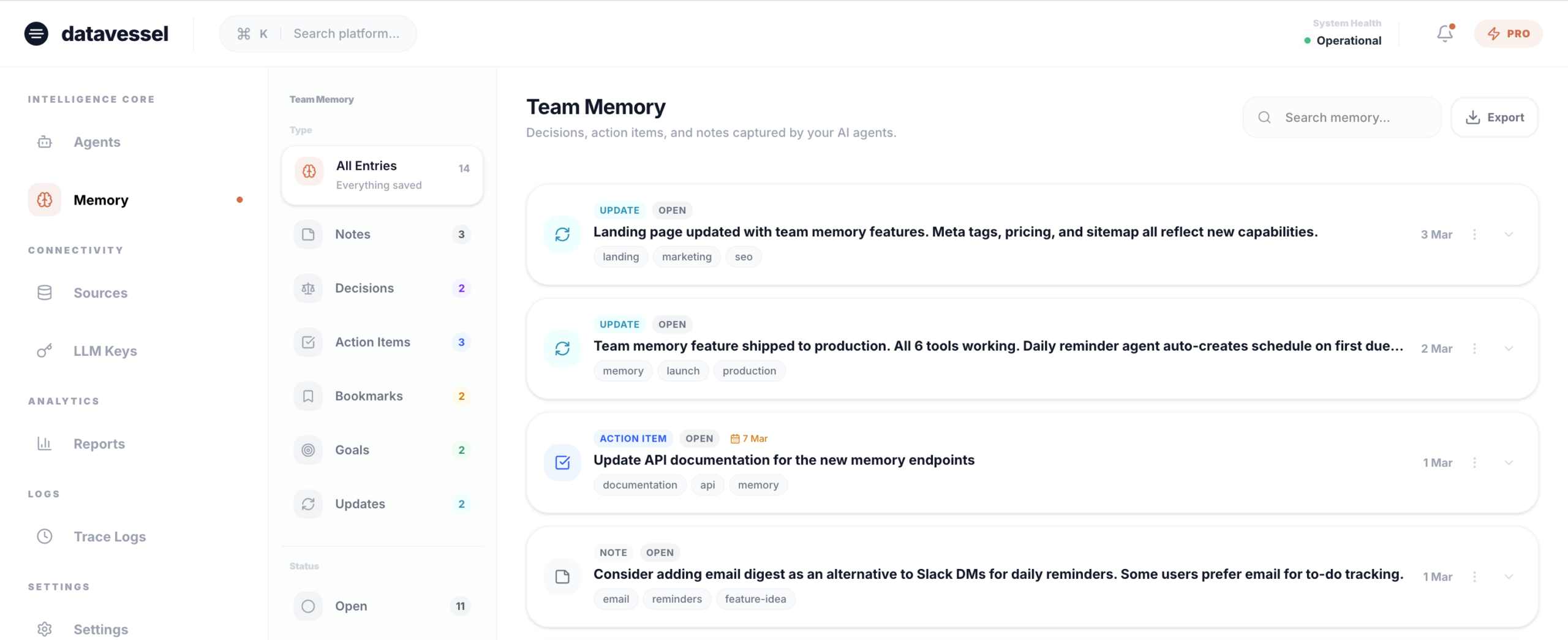
TL;DR: The new Memory page in the datavessel dashboard gives you a visual, filterable view of everything your team has told the bot to remember. Filter by type, status, or search by keyword. Mark items complete, archive, or export your entire knowledge base as JSON.
Last week we launched Team Memory — tell the bot something in Slack, and it remembers. Ask later, and it recalls.
But sometimes you want to see everything at once. Not ask one question at a time — just browse, filter, and manage.
Now you can.
What’s on the Dashboard
The Memory page shows every entry your team has saved — organized, searchable, and actionable.
A filter panel on the left lets you narrow down by:
- Type — Decisions, action items, bookmarks, goals, updates, notes
- Status — Open, completed, overdue, archived
Filters combine. Want to see only overdue action items? Two clicks. All open decisions from this month? Done.
Each entry expands to show the full picture: content, tags, assignee, due date, and when it was created.
One-Click Actions
Managing memories doesn’t require going back to Slack. From the dashboard:
- Mark complete — Task done? One click.
- Archive — Keep for history but clear the clutter.
- Delete — Remove permanently.
Updates are instant. No loading spinners, no page refreshes. Click and it’s done.
Only What You Tell It
Team Memory doesn’t listen to everything. It only captures what you explicitly ask the bot to remember.
When you @mention datavessel with something worth saving, the AI does the work:
- Auto-classifies — “We decided to go with Stripe” becomes a Decision. “Alice needs to update the docs by Friday” becomes an Action Item with an assignee and due date.
- Auto-tags — Relevant keywords are generated, including broader category tags. Save “Postgres” and it’s also tagged “database.”
- Structures the entry — What gets stored is already organized. Not raw chat, but clean, searchable knowledge.
This means the dashboard isn’t a messy feed of messages. It’s a curated knowledge base that your team built naturally, just by talking in Slack.
Export Everything
Your data is yours. The Export button downloads your entire team memory as a structured JSON file.
Every entry with its:
- Type and content
- Status (open, completed, archived)
- Tags
- Assignee and due date
- Creation date
Use it for backups, migration, reporting, or feeding into other tools. No lock-in. Your team’s knowledge stays portable.
Two Interfaces, One Memory
Slack is for the flow of work — quick saves, quick recalls, in the moment.
The dashboard is for the overview — filtering, browsing, managing in bulk.
Both read from and write to the same memory. Mark something complete on the dashboard, and the bot knows. Tell the bot to remember something, and it shows up on the dashboard instantly.
Use whichever fits the moment.
Try It
The Memory page is live in the datavessel dashboard for all users. If you’ve been using Team Memory in Slack, your entries are already there.
Leave a Reply